
Software Guide
This page is based on the supplied Formotion Glove G2-L Quick Start Guide. Complete installation, zero-bias calibration, connection, and motion calibration in order before using output for teleoperation.
1. Install the Teleoperation Application
- Download v1.1.39.apk and update PICO 4 Ultra to its latest system version.
- Connect the powered-on headset to the computer with a data cable.
- Copy the APK to
This PC\PICO 4 Ultra\Internal shared storage. - Open the PICO file manager, locate the APK, and install it.
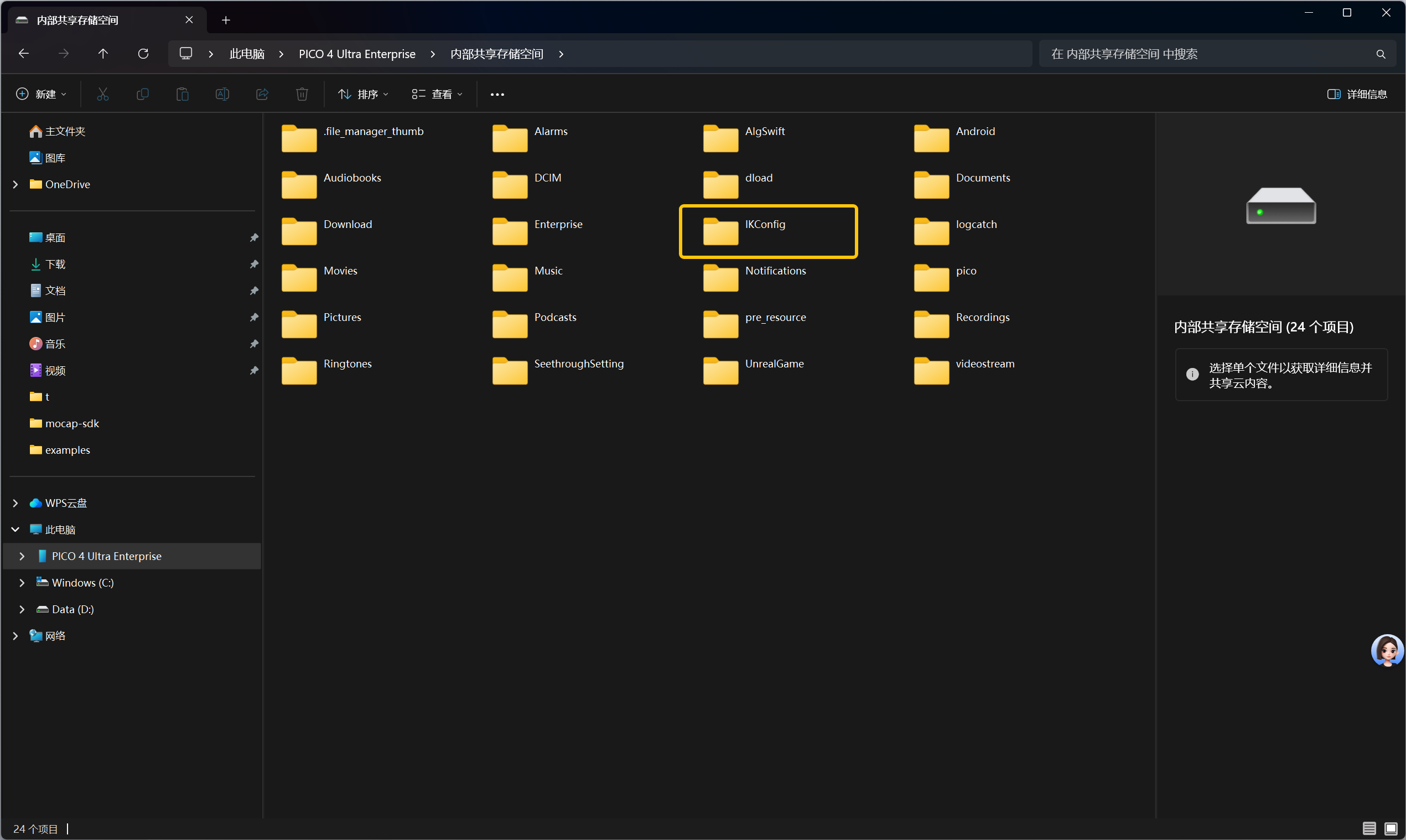
If an existing installation crashes at startup, delete the IKconfig folder in internal shared storage and restart the application.
2. Glove and Tracker Setup
| LED state | Meaning |
|---|---|
| Blinking green | Normal battery level |
| Blinking red | Low battery |
| Solid red | Charging |
| Off | Charging complete |
| Blinking blue | Fault state |
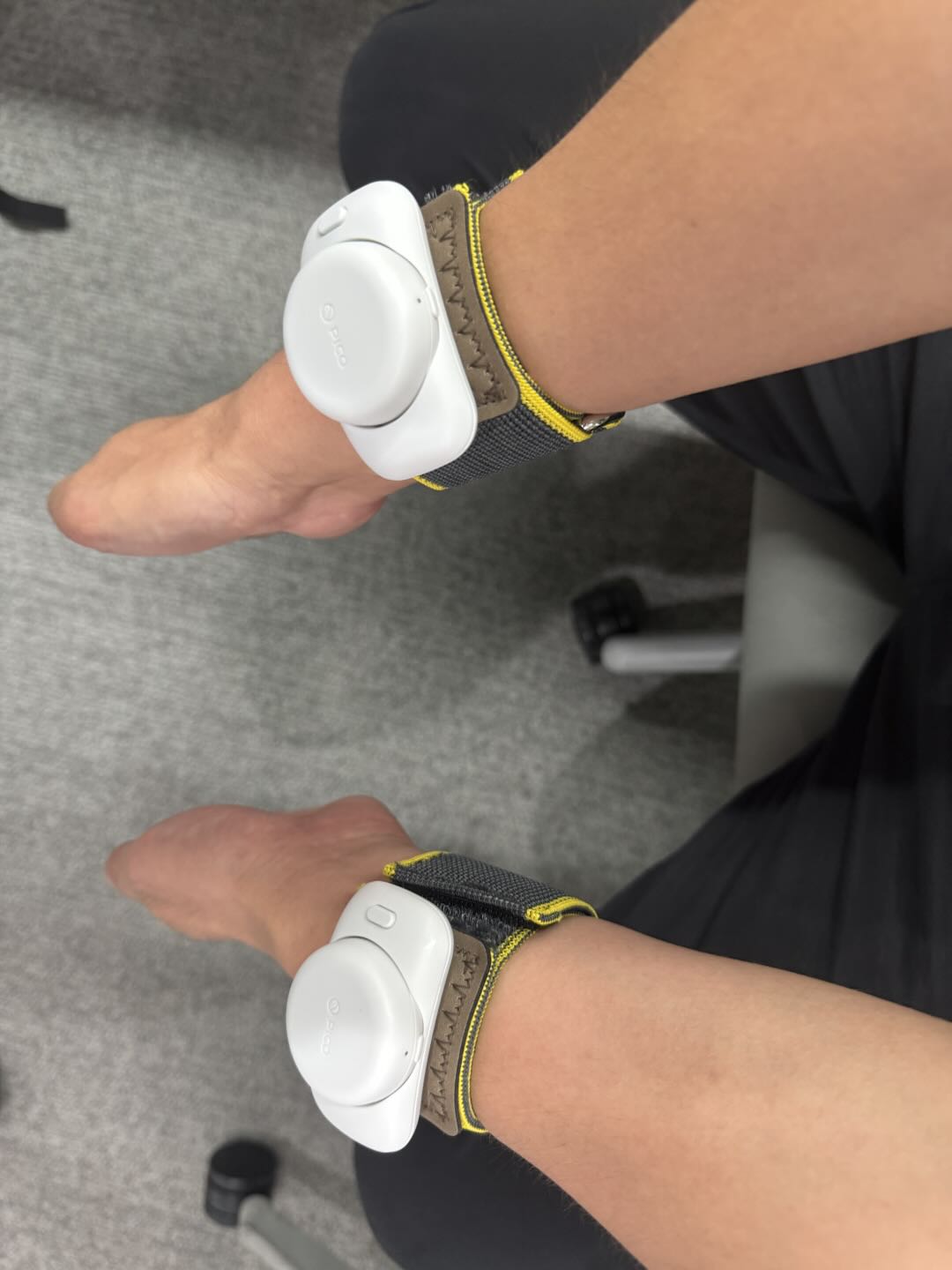
When fitting VR Trackers, point the two upper-body Tracker LEDs toward the arms and the three lower-body Tracker LEDs toward the floor. Mount the wrist Tracker sideways at 90 degrees and keep straps short enough to prevent tilt.
3. Power On, Connect, and Verify
- Power on the gloves and confirm the green LED blinks.
- Place the gloves motionless on a table for 10 seconds. This zero-bias calibration is required after every power-on.
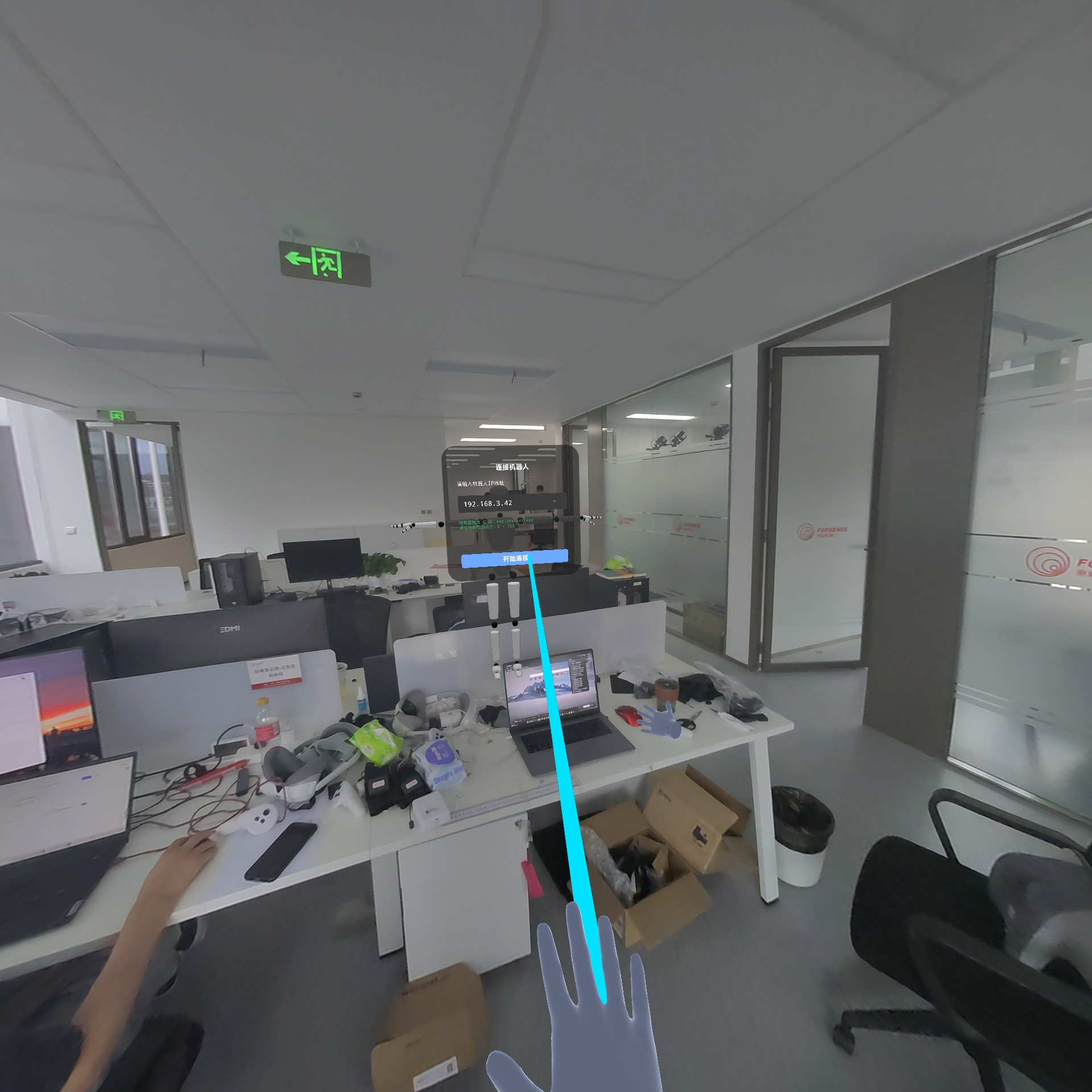
- Open the FORSENSE motion-capture teleoperation application from the PICO application list.
- Verify the robot IP address, select Start connection, and wait for success.
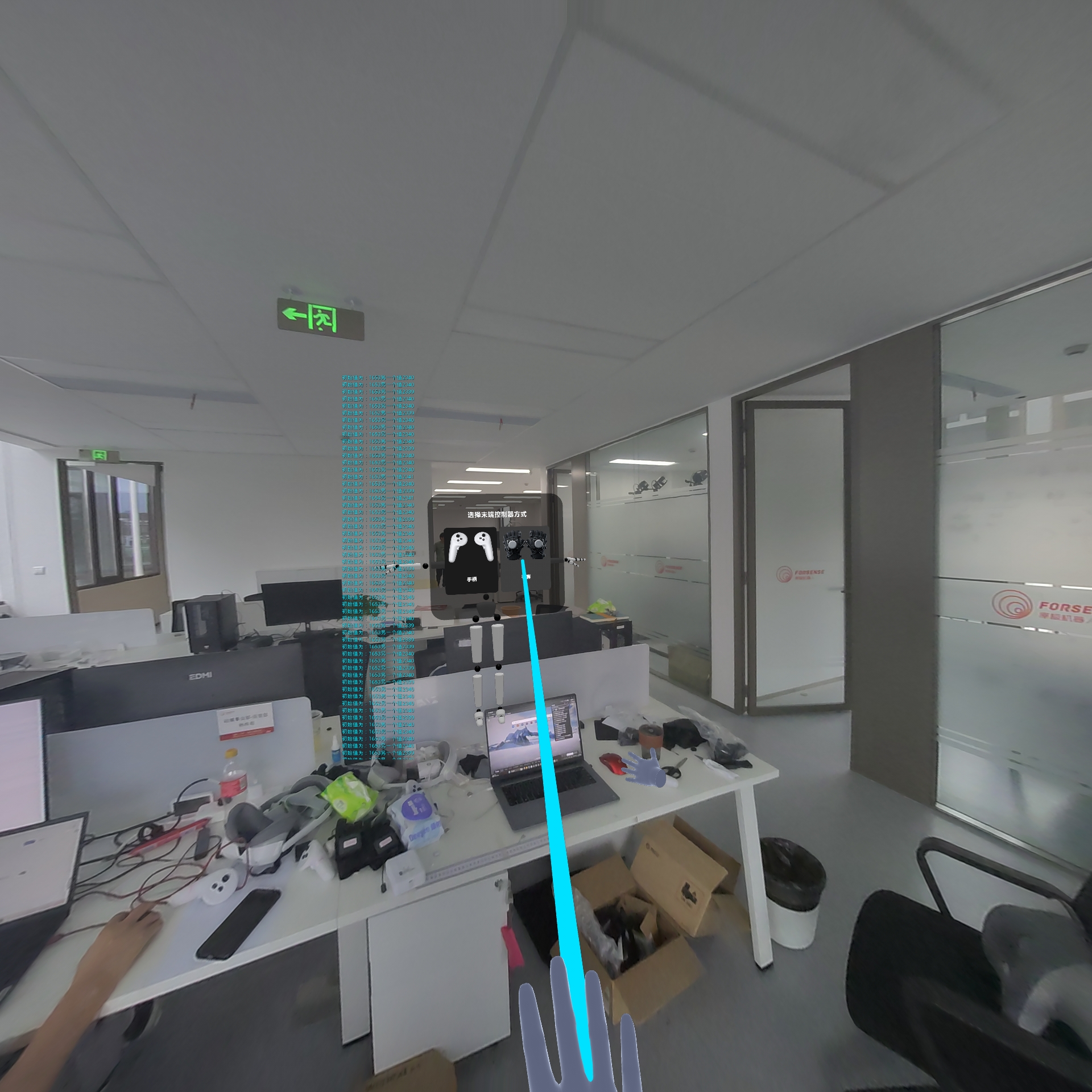
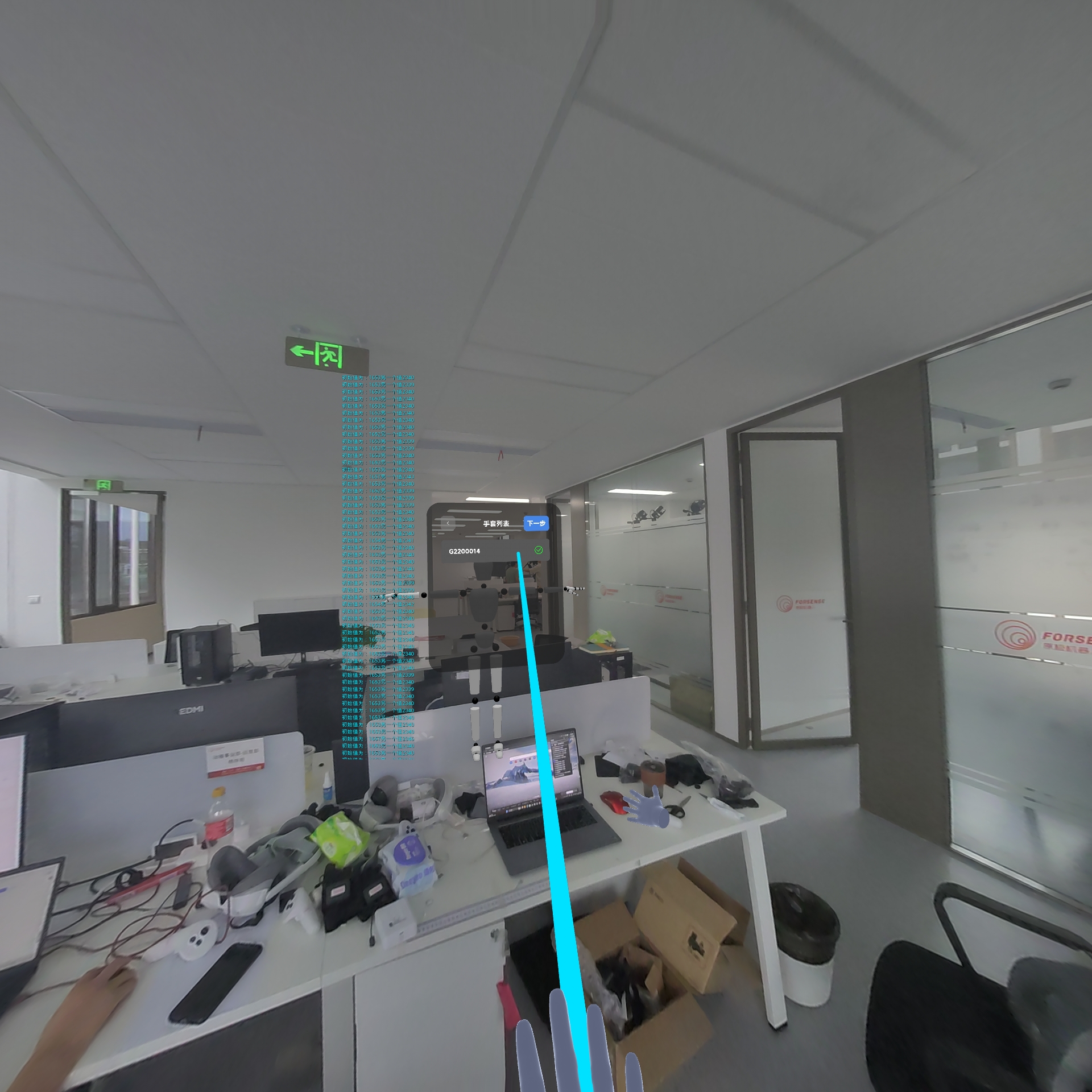
- On the device-selection page, choose the dual-glove icon, discover nearby gloves, verify the device IDs in the glove list, and continue.
4. Motion Calibration
Select Recalibrate, follow the four actions, move both hands, and verify that the avatar matches the physical hand motion. Select Complete verification when mapping is correct.
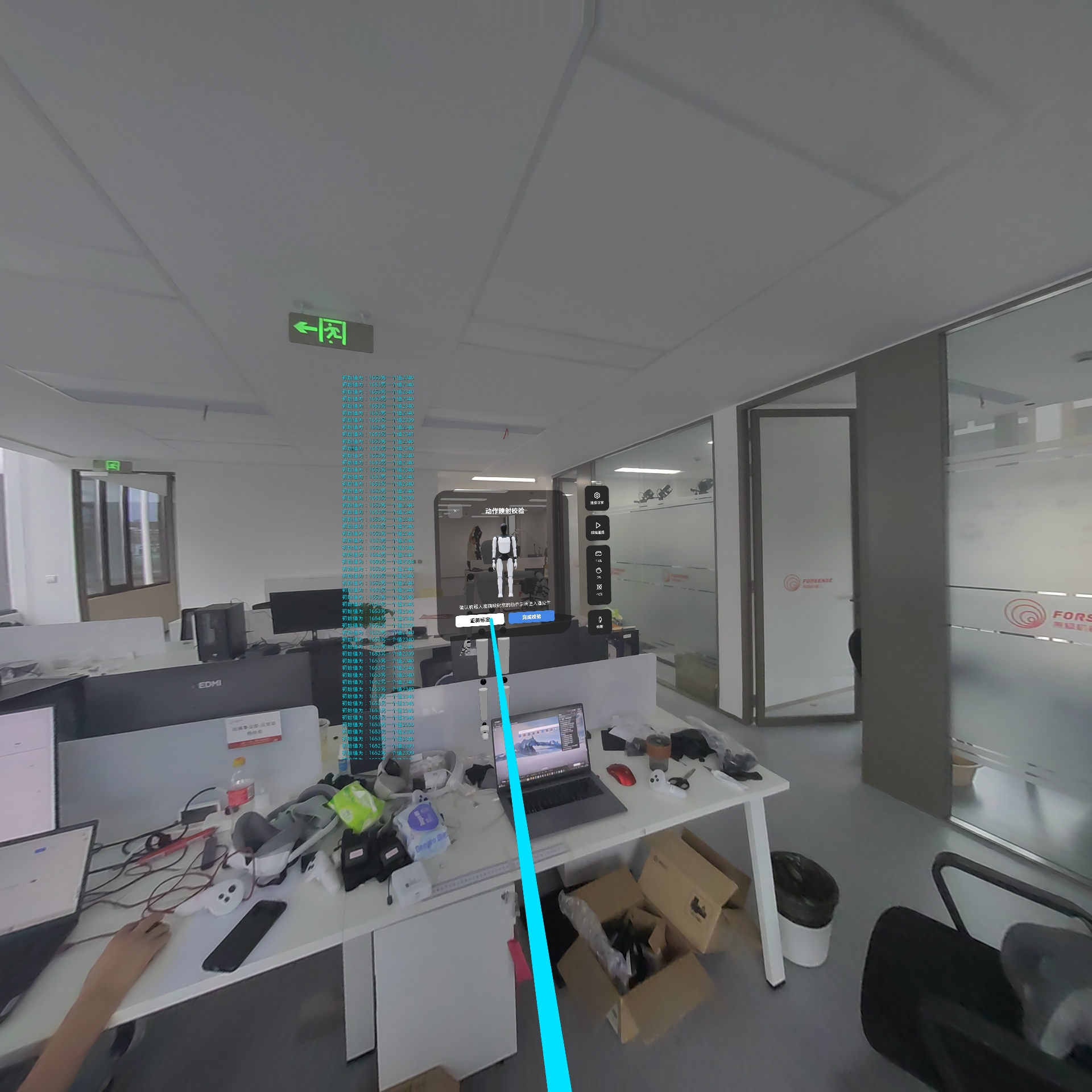
During the sequence, keep all five fingers together. Actions 1 and 2 must remain still; action 4 requires quick, continuous waving for about 10 seconds.
| Action | Requirement | Reference |
|---|---|---|
| 1 | Arms straight; palms sideways | Audio |
| 2 | Arms straight; palms flat | Audio |
| 3 | Keep wrist/forearm angle and draw an inward “L”, then reverse it | Video |
| 4 | Keep wrist/forearm angle and wave both hands quickly | Video |
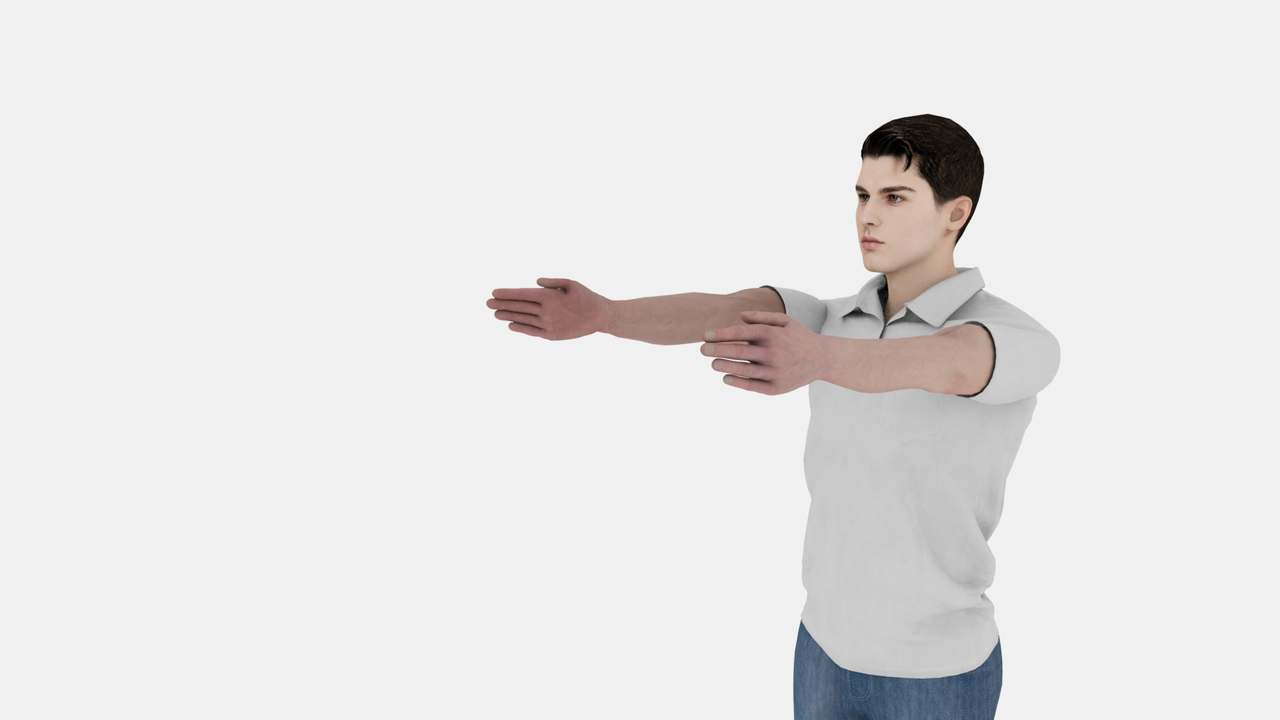
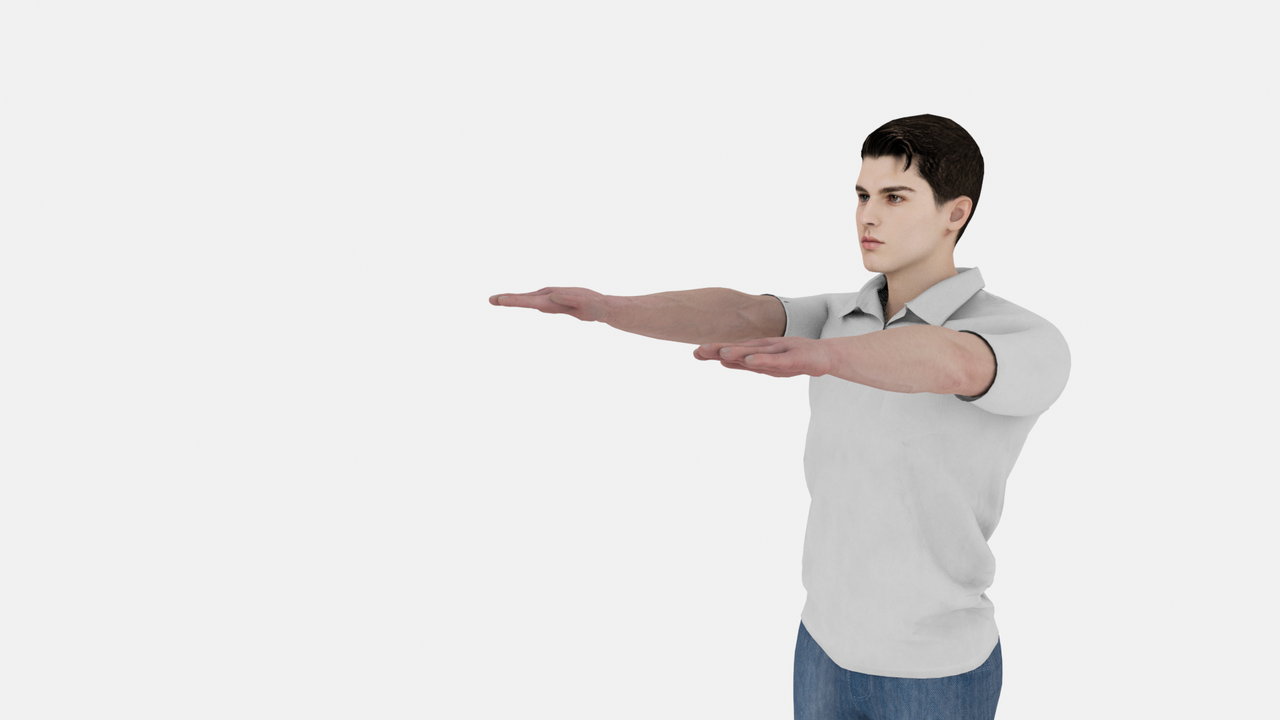
Run six-face calibration only when a voice prompt requests it after Bluetooth connection. The six-face calibration video is provided for that case.
Related Documentation
- Data formats: UDP ports, headers, and state fields.
- Coordinate systems: world-frame origin and axes.
- Firmware upgrade: upgrade package and serial-port workflow.
- FAQ: calibration, Tracker, safety-zone, and output issues.