Forsense G7 Glove Quick Connection Guide (Wired)
Applies to the G7 wired kit. For wireless, VR, or forearm modules, see the complete Standard User Manual.
1. Start the Host Application
On the computer, double-click the Forsense HumanHand executable in the software root directory. If the software is not installed, install it first. Keep it running throughout the following steps; otherwise the computer cannot receive glove data.
You can start the software or the gloves first. However, Forsense HumanHand can discover the gloves only after they have powered on correctly.
2. Connect the Hardware
Connect the gloves to the Hub's left and right ports (L/R).
Connect power to the Hub's PWR-IN port.
Connect the Hub's USB-C port to a USB port on the back of the computer.
Switch on the power. Wait for slow blue flashing to change to solid blue (one glove) or solid green (both gloves ready).
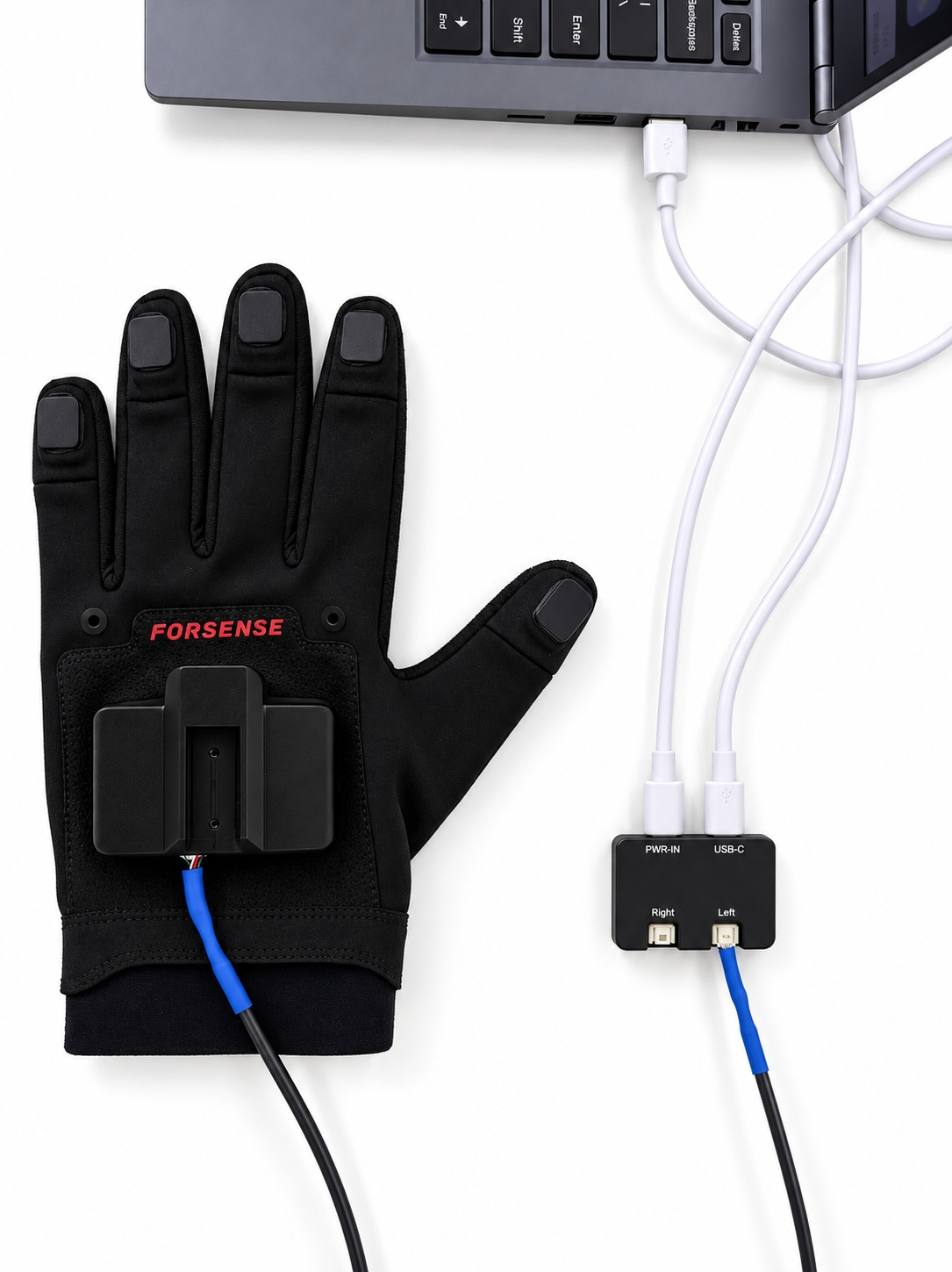
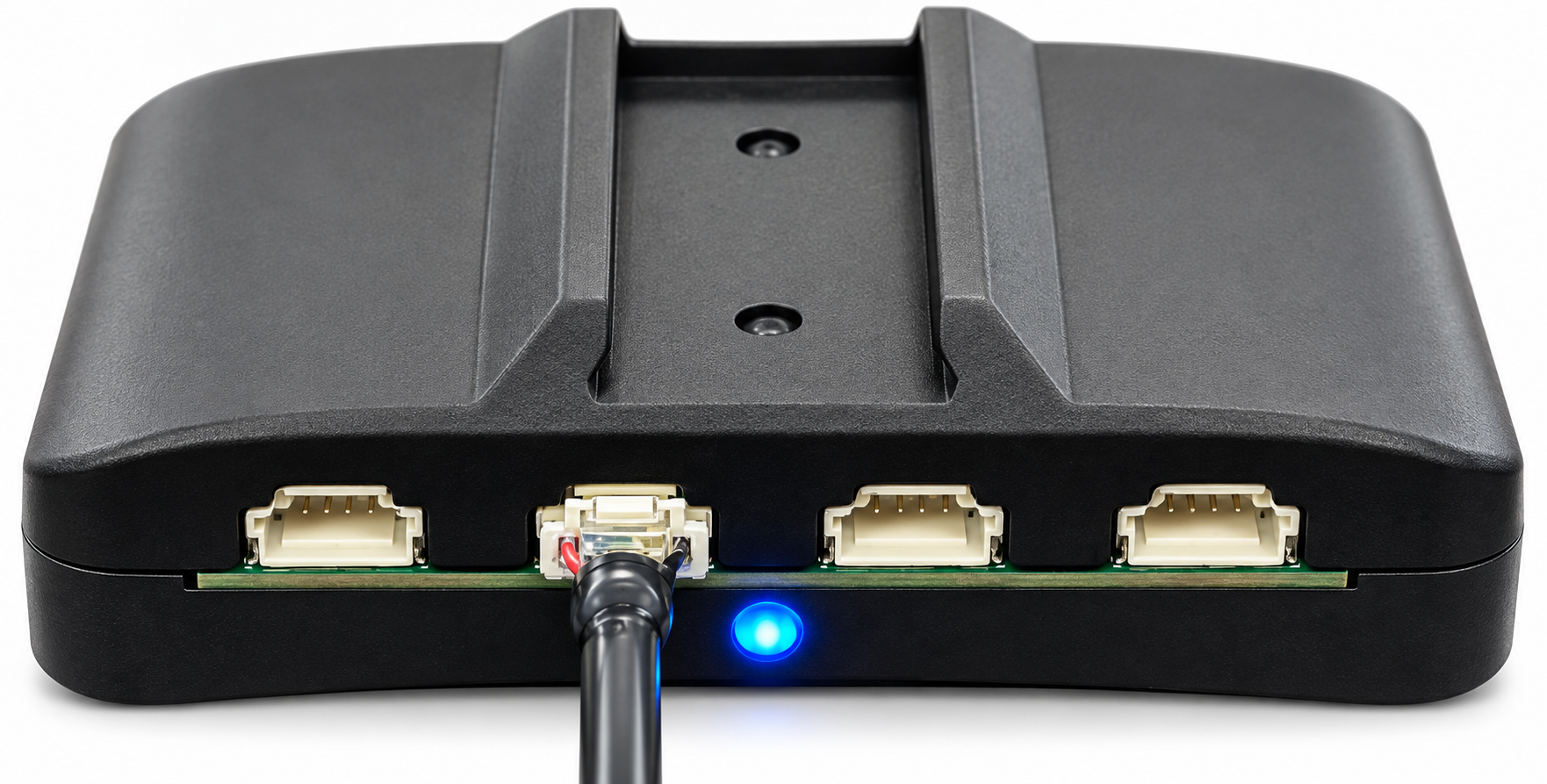
- Connect the USB-to-Type-C cable to a computer USB port and supply power through the power cable. Solid blue (one glove) or solid green (both gloves) indicates successful startup.
LED quick reference:
| LED behavior | Operating status |
|---|---|
| Slow blue flashing | Initializing |
| Solid blue | One glove operating normally |
| Solid green | Both gloves normal and synchronized |
| Solid red | IMU self-test failed |
| Fast red flashing | Calibration error |
3. Connect the Software
Open Forsense HumanHand.
Select the correct COM port, set the baud rate to 921600, and click Connect.
Confirm that the IMU values update in real time.
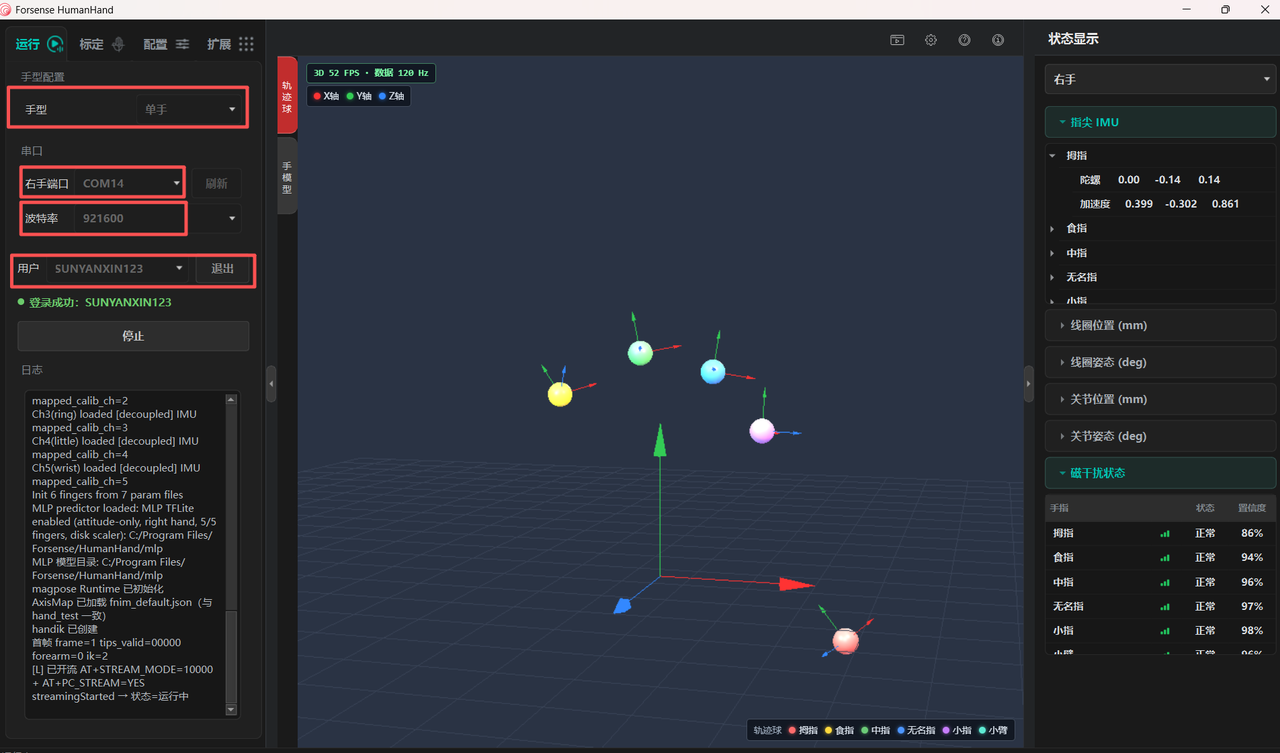
4. Reference Video
5. Calibration (Essential)
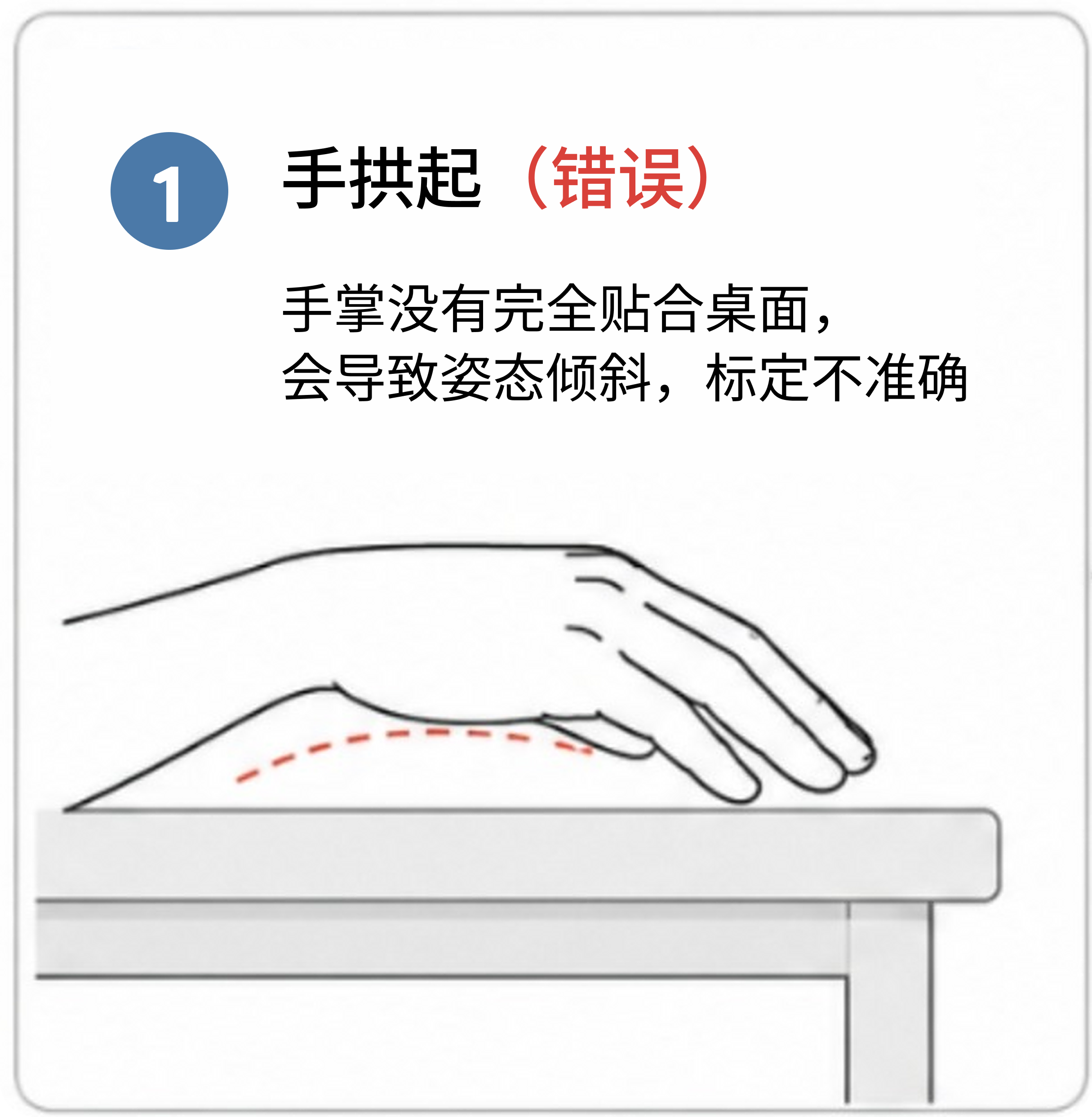
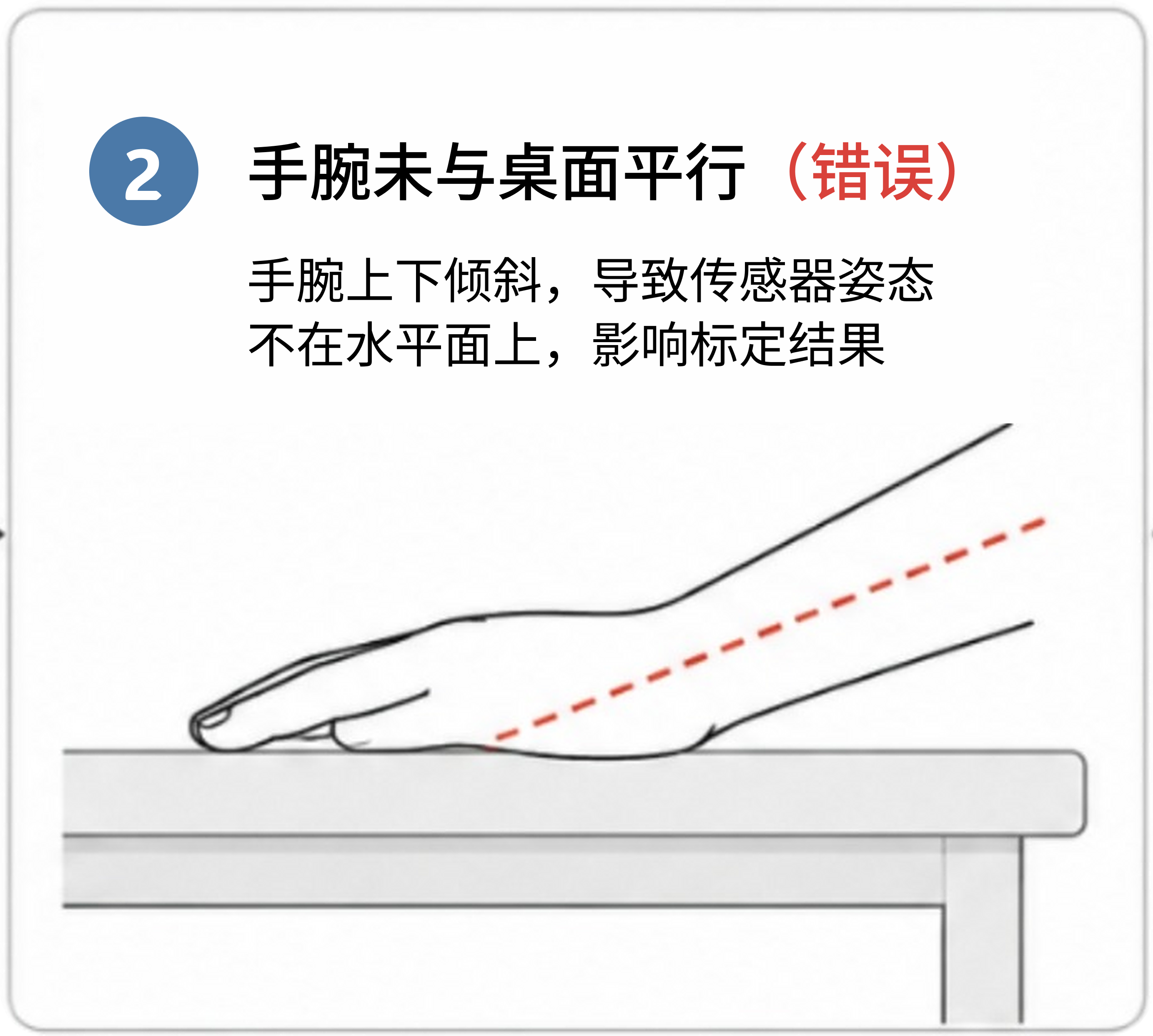
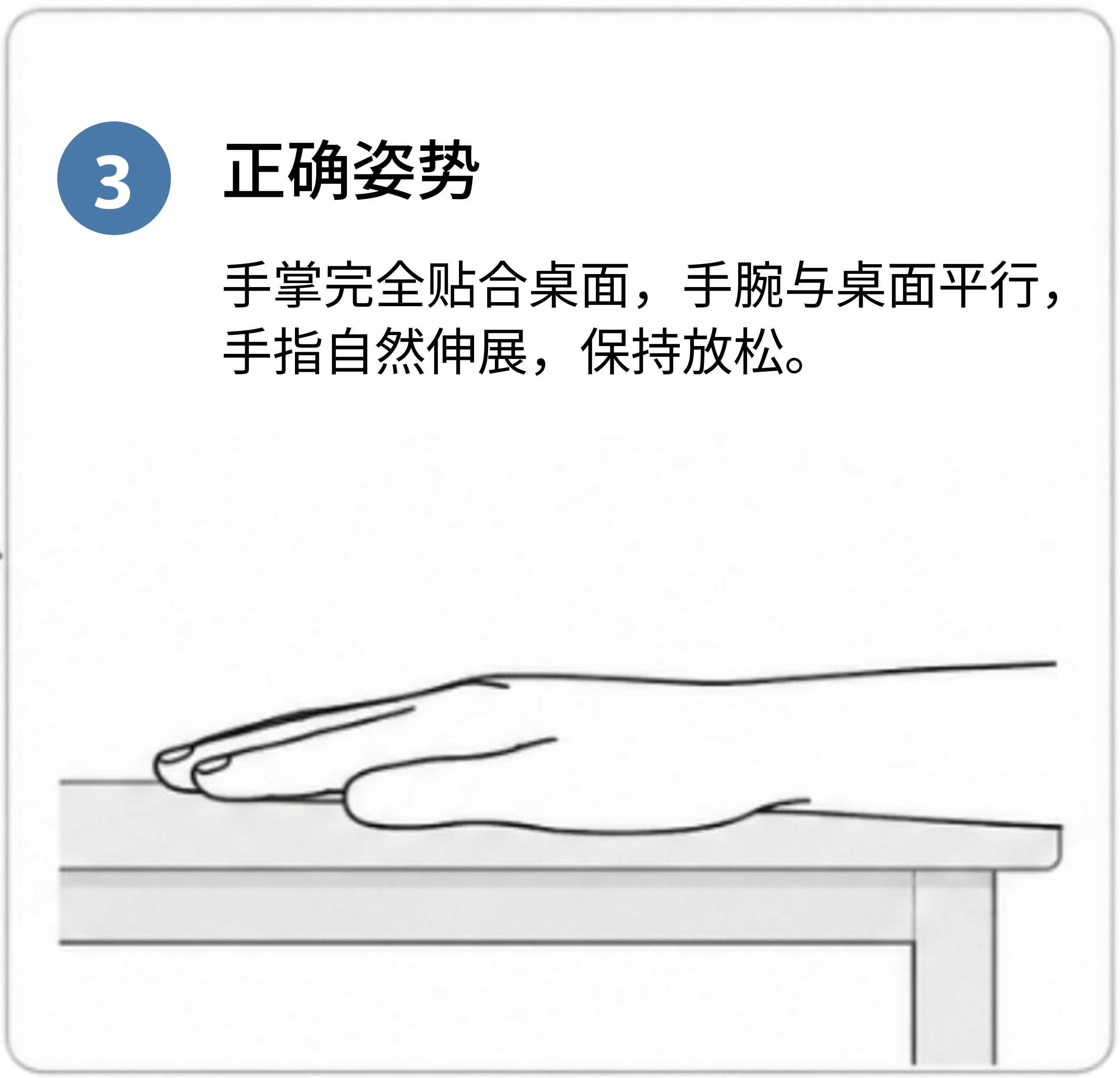
Put on the gloves. Keep your wrists flat and your hands naturally extended.
Click Calibration and follow the instructions to complete all seven gestures in sequence.
Wait for each progress step to finish before changing gestures. Once calibration is complete, the hand model follows your movements.
During calibration, keep your palms facing down rather than toward yourself. Move as far as comfortably possible for each gesture without excessive force. For example, curl your fingers fully when making a fist, keep them together during the finger-closing gesture, and spread them fully during the finger-spreading gesture. Perform fingertip-to-fingertip calibration.
Wear the gloves correctly, and make sure both the receiver and gloves are switched on.
Connect at least one glove to the software. As applicable, click Left/Right Hand Calibration and Finger Opposition Calibration to start calibration.
Follow the on-screen illustrations to complete the seven calibration gestures in order. Each gesture takes about three seconds. Watch the progress display on the right and change gestures only after it advances to the next step.
If calibration fails, repeat the steps above.
If a glove disconnects after successful calibration, reconnect it to continue without recalibrating.
A glove that does not participate in calibration will remain in its initial pose; its model will not be driven after calibration.
Important posture guidance: